
What the 'C' in USB-C Actually Stands For
- By Web Desk -
- Oct 13, 2025


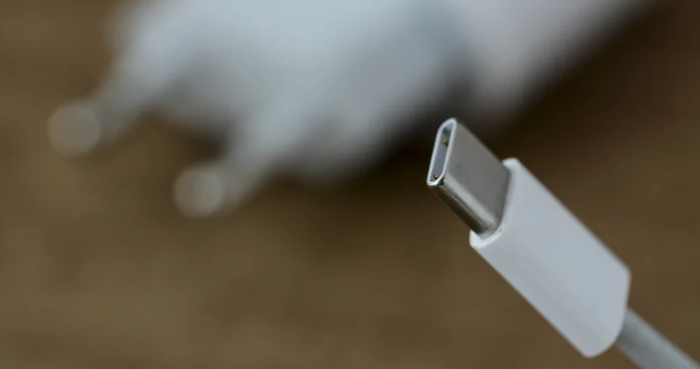
If you’ve ever plugged a cable into your phone or laptop, you’ve probably noticed the small, oval-shaped port called USB-C. It’s become the standard for everything from smartphones to high-end computers, but many people still wonder what the “C” actually means.
It’s a common assumption that it might stand for “charging” or “cable,” but the real story is much more straightforward and has to do with its place in history.
The name USB-C simply marks its spot as the next major connector type in the USB family. The technology started with the large, rectangular plug we all know as USB-A, which is still found on many computers and flash drives.
This was followed by USB-B, the squarish connector that was commonly used for printers and external hard drives.
After a few smaller variations came and went, the industry needed a new, more versatile standard, and in 2014, USB-C was born. So, the “C” isn’t a code for its function; it just means it came after A and B.
The most important thing to understand about USB-C is that the shape of the plug is separate from its capabilities. The “C” only refers to the physical connector itself—the small, reversible design that you can plug in without worrying about which way is up.
While this design is universal, the technology inside can vary dramatically. A USB-C port on one device might be incredibly fast, while the same-shaped port on another device could be much slower.
Read More: Samsung set for highest Q3 profit in three years as AI demand lifts chip prices
The actual performance of a USB-C port depends on the underlying protocol it supports. For example, a port can use the USB-C shape but only offer slow USB 2.0 speeds, which is common for basic charging cables.
Another port could support USB4 or Thunderbolt, allowing for lightning-fast data transfers and the ability to connect to multiple high-resolution monitors.
The port’s capabilities are determined by the manufacturer, which is why it’s always a good idea to check your device’s specifications or look for symbols next to the port, like a lightning bolt for Thunderbolt, to know what it can really do.